OpenAI invoice: how to find and download your ChatGPT and API receipts
October 15, 2026 · 10 min read · By Charles Ugo
invoice
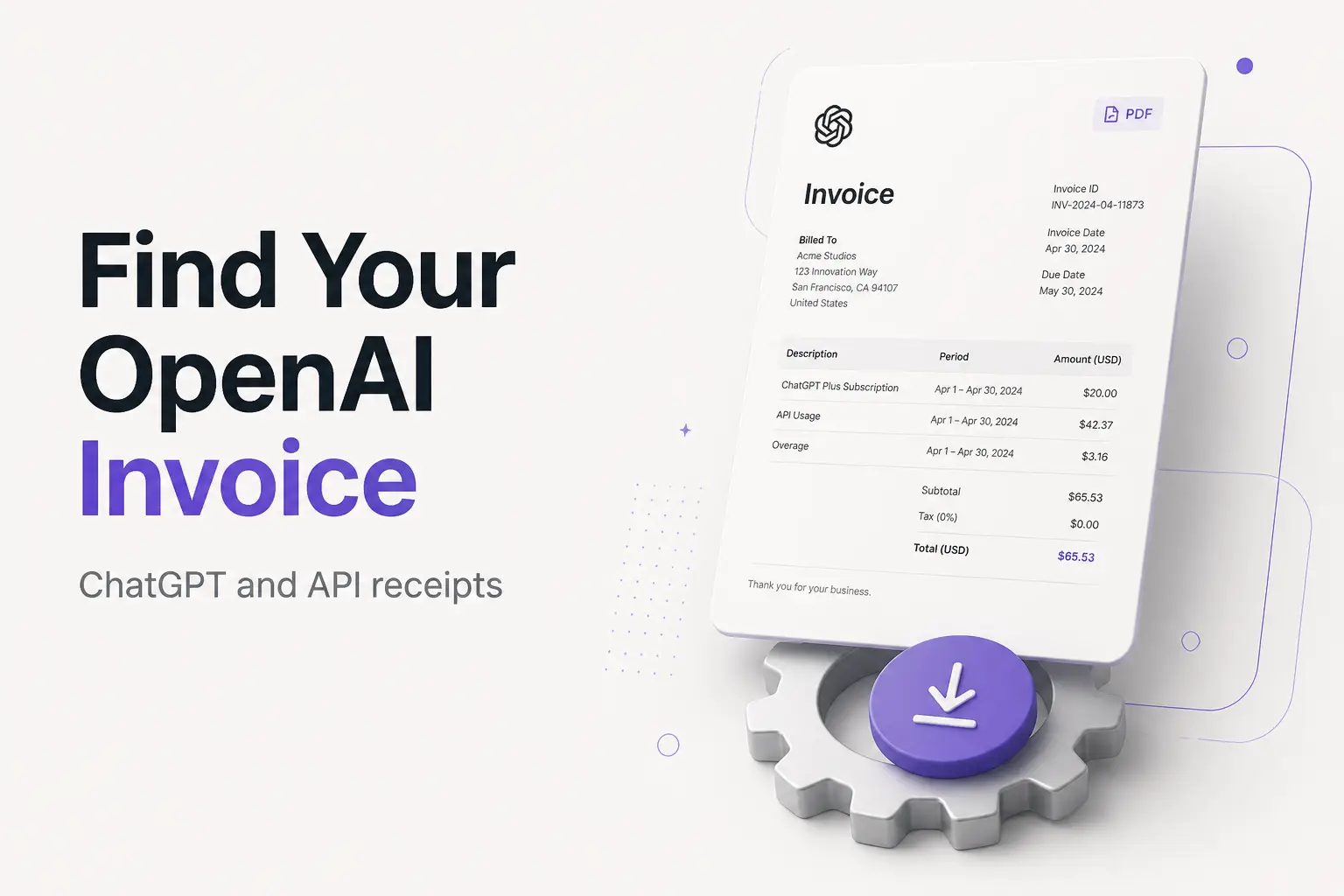
Your OpenAI charges live in two different places, and that trips almost everyone up. A ChatGPT subscription (Plus, Team, or Pro) is invoiced inside the ChatGPT app's billing portal. OpenAI API usage—the pay-per-token developer platform—is invoiced somewhere completely separate, in the platform dashboard. If you've been hunting for an API charge inside ChatGPT's settings, that's why you can't find it.
This guide gives you the exact click path to each PDF, how to put your business name and Tax ID on the invoice before you're charged, and the mix-ups that waste people's time at expense season. If you landed here because you actually need to send an invoice to your own clients—not just expense OpenAI—our free invoice generator makes a clean, downloadable PDF in a couple of minutes.
An invoice is just an itemized record of what you paid, for what, and when. OpenAI produces one for every charge. The only question is where.
The two kinds of OpenAI invoice
Before you go clicking, figure out which charge you're chasing. They don't mix.
- ChatGPT subscription (Plus, Team, Pro, Enterprise). A flat recurring fee for using the ChatGPT app—billed monthly or annually. One invoice per billing cycle. Managed inside ChatGPT.
- OpenAI API / platform usage. Usage-based billing: you pay per token for what your applications send to and receive from the models. The bill scales with how much you use it, and it's invoiced in the developer platform at
platform.openai.com—not in the ChatGPT app.
They're separate accounts with separate logins in many cases, and always separate invoices. Your ChatGPT Plus receipt won't list API charges, and your API invoice won't mention your Plus plan. If you pay for both—say, Plus for yourself and API access for a product you're building—expect two sets of invoices in two places.
One more split worth naming up front: where you subscribed decides where the receipt is. Subscribe on the web and OpenAI (through Stripe) issues the invoice. Subscribe through the Apple App Store or Google Play and they handle the payment—so the receipt lives in your app store history, not OpenAI's. More on that in the mistakes section.
How to download your ChatGPT subscription invoice
This is the path most people want—the receipt for Plus, Team, or Pro for an expense report.
- Sign in at chatgpt.com with the account that pays for the subscription.
- Click your profile icon, then open Settings.
- Go to Billing (on some accounts it's Account, then Payment).
- Click Manage (or Manage subscription). This opens the Stripe-hosted billing portal in a new tab.
- Scroll to Invoice history at the bottom.
- Click the month you need, then Download invoice to save the PDF.
OpenAI's own help page on finding your past ChatGPT invoices has the current steps if the menu has moved—the labels shift around, but the destination is always that Stripe portal.
A couple of notes that save headaches:
- Team and Enterprise billing is admin-only. If you're on a Team workspace and don't see billing, you're not the workspace admin. Ask the owner to download it or grant you billing access.
- The
billing@openai.comemail is a confirmation, not the invoice. It confirms a payment went through; the actual tax invoice PDF lives in the Stripe portal above. Don't forward the email to accounting and call it done. - Your whole history is there. OpenAI keeps every past invoice for as long as the account exists, so you can pull a PDF for any prior month at any time.
How to download your OpenAI API (platform) invoice
API and platform charges are handled entirely separately from the ChatGPT app.
- Sign in at platform.openai.com with a Billing or Owner role on the organization.
- Open Settings, then Organization, then Billing.
- Open Billing history.
- Click the invoice or charge you need and download the PDF or receipt.
Because API billing is usage-based, an invoice reflects what your applications actually consumed in that period, not a fixed subscription price. If the number looks off, it's usually real usage—check your usage dashboard for the same window before assuming a mistake.
Only members with a billing role on the organization can see this area. If you're a developer on someone else's org without that role, you won't find the invoices—your org owner has to.
Put your business name and Tax ID on the invoice (before you're charged)
If this is going on an expense report or into your books, set the billing details first. Finalized invoices generally can't be edited after the fact, and updates apply only to future invoices—so fixing it after the charge means you're stuck with whatever it said.
For a ChatGPT subscription: open the Stripe billing portal (Settings, then Billing, then Manage) and edit your billing information—business name, billing address, and Tax ID.
For the API: go to Settings, then Organization, then Billing, and update the organization's billing details there. OpenAI's help page on updating billing information and Tax ID walks through the fields.
A few US-specific points, framed as general information rather than tax advice:
- VAT is not a US concept. OpenAI shows a VAT line for customers in the EU/UK and similar regions. In the US the relevant tax is sales tax, and whether it's added depends on your state and the transaction—not every digital service is taxed everywhere.
- A Tax ID can change how tax appears. For VAT-registered buyers a valid ID can shift the tax treatment; in the US, adding your business Tax ID (EIN) mainly puts the right entity name on the invoice. You do not put your Social Security number on an invoice—yours or anyone's.
- An invalid Tax ID can be removed. If the ID you enter doesn't check out, OpenAI can drop it and apply tax anyway, so enter it correctly.
Worked example 1: expensing ChatGPT Plus
Say you're a freelance copywriter who uses ChatGPT Plus for work and wants to deduct it cleanly.
- Pay with your business card, and set your business name and address in the billing portal before the next renewal.
- Download the invoice each month from Settings, then Billing, then Manage, then Invoice history—or keep the confirmation emails in a labeled folder as a backup.
- Log it as a software expense in your bookkeeping, matched to the PDF.
A software subscription used for your business is generally a deductible business expense in the US—but that depends on your circumstances, so treat this as general information, not tax advice. The reason to keep the PDF isn't only the deduction: the IRS expects self-employed people to keep supporting documents for what they report. A downloaded invoice is that document. A bank statement line that just reads "OpenAI" is not.
Worked example 2: reconciling an API bill
Now say you run a small app that calls the OpenAI API, and your card was charged $148.60 this month. You want to reconcile it and file the invoice.
- Sign in at platform.openai.com, go to Settings, then Organization, then Billing, then Billing history, and open the invoice for the period.
- Match the total against your usage dashboard for the same dates. Usage billing moves with traffic—a busy month costs more, and that's expected, not an error.
- Check the invoice header shows your business name and Tax ID (which is why you set them before the cycle closed).
- Save the PDF to the same folder as your other software costs.
Because there's no fixed "subscription price" to compare against, the invoice total is your usage. If it's higher than you expected, the fix isn't disputing the invoice—it's setting a usage limit or budget alert in the platform so next month's number can't surprise you.
Common mistakes
- Looking for an API charge inside ChatGPT (or vice versa). They're separate systems. ChatGPT subscriptions are in the app's billing portal; API usage is in the platform dashboard. Know which one you're chasing before you start clicking.
- Subscribing through the App Store, then hunting in OpenAI. If you bought Plus in the Apple App Store, Apple issues the receipt—it's in your App Store purchase history, not OpenAI's portal. Same for Google Play. OpenAI's settings will simply show nothing to download.
- Treating the
billing@openai.comemail as the invoice. It's a payment confirmation. The tax invoice is the PDF in the billing portal. - Setting the business name after the charge. Finalized invoices can't be edited and changes only apply going forward. Set your business name, address, and Tax ID before the renewal or billing cycle closes.
- Assuming a card statement is a receipt. A line that says "OpenAI" won't satisfy an expense reviewer or your own records. Download the actual PDF.
- Expecting Team billing without admin access. If you're not the workspace admin, the invoice isn't hidden—you just don't have permission. Ask the owner.
Frequently Asked Questions
Where do I find my OpenAI invoice? It depends on what you paid for. A ChatGPT subscription invoice lives in the ChatGPT app: profile icon, then Settings, then Billing (or Account, then Payment), then Manage—which opens the Stripe billing portal where you download the PDF from Invoice history. An OpenAI API invoice is separate: sign in at platform.openai.com and go to Settings, then Organization, then Billing, then Billing history.
How do I download a ChatGPT invoice for an expense report?
Open ChatGPT, click your profile icon, go to Settings, then Billing, and click Manage—this opens the Stripe billing portal. Scroll to Invoice history and click Download on the month you need. The billing@openai.com email is a payment confirmation, not the tax invoice; the real PDF is in that portal.
How do I add my business name and Tax ID to an OpenAI invoice? In the same billing portal (for ChatGPT) or under Settings, then Organization, then Billing (for the API), open your billing details and add your business name, billing address, and Tax ID. Do it before your next charge—finalized invoices generally can't be edited afterward, and updates apply only to future invoices.
Does OpenAI charge VAT or sales tax? Any applicable tax is added at checkout based on your billing location and itemized on the invoice. VAT is a non-US concept—US customers see sales tax where it applies, which depends on your state. Adding a valid Tax ID can change how tax appears. Treat this as general information, not tax advice, and check your own invoice for the exact breakdown.
Why is my ChatGPT invoice not showing in OpenAI settings? The most common reason is that you subscribed through the Apple App Store or Google Play. Those charges are handled by Apple or Google, not OpenAI, so the receipt lives in your app store purchase history—not in ChatGPT's billing portal. Team billing is also admin-only, so if you're not a workspace admin you won't see the invoices.
Is an OpenAI subscription tax deductible? If you use ChatGPT or the API for your business, the cost is generally treated as a deductible software expense in the US—but that depends on your situation, so treat this as general information, not tax advice. Either way, save the invoice PDF: the IRS expects self-employed people to keep supporting documents for what they report. A bank line that says "OpenAI" is not a receipt.
What's the difference between a ChatGPT invoice and an OpenAI API invoice? A ChatGPT subscription is a flat recurring fee for the app, billed monthly or yearly, with one invoice per cycle in the app's billing portal. API billing is usage-based—you pay per token for what your apps send and receive—and those invoices live in the developer platform. They're separate accounts with separate invoices, so one won't include the other.
Finding your OpenAI invoice comes down to knowing which charge you're chasing: ChatGPT subscriptions in the app's billing portal, API usage in the platform dashboard. Set your business name and Tax ID before you're billed, download the PDF instead of trusting a card statement, and keep it for your records. If you want to make an invoice with ChatGPT rather than expense it, see our guide to creating an invoice with ChatGPT—and when it's your turn to bill a client, our invoice generator turns your details into a clean PDF in minutes. New to it? The beginner's guide to writing an invoice covers every field.