Invoice spreadsheet example: templates and layouts that work
September 27, 2026 · 9 min read · By Charles Ugo
invoice
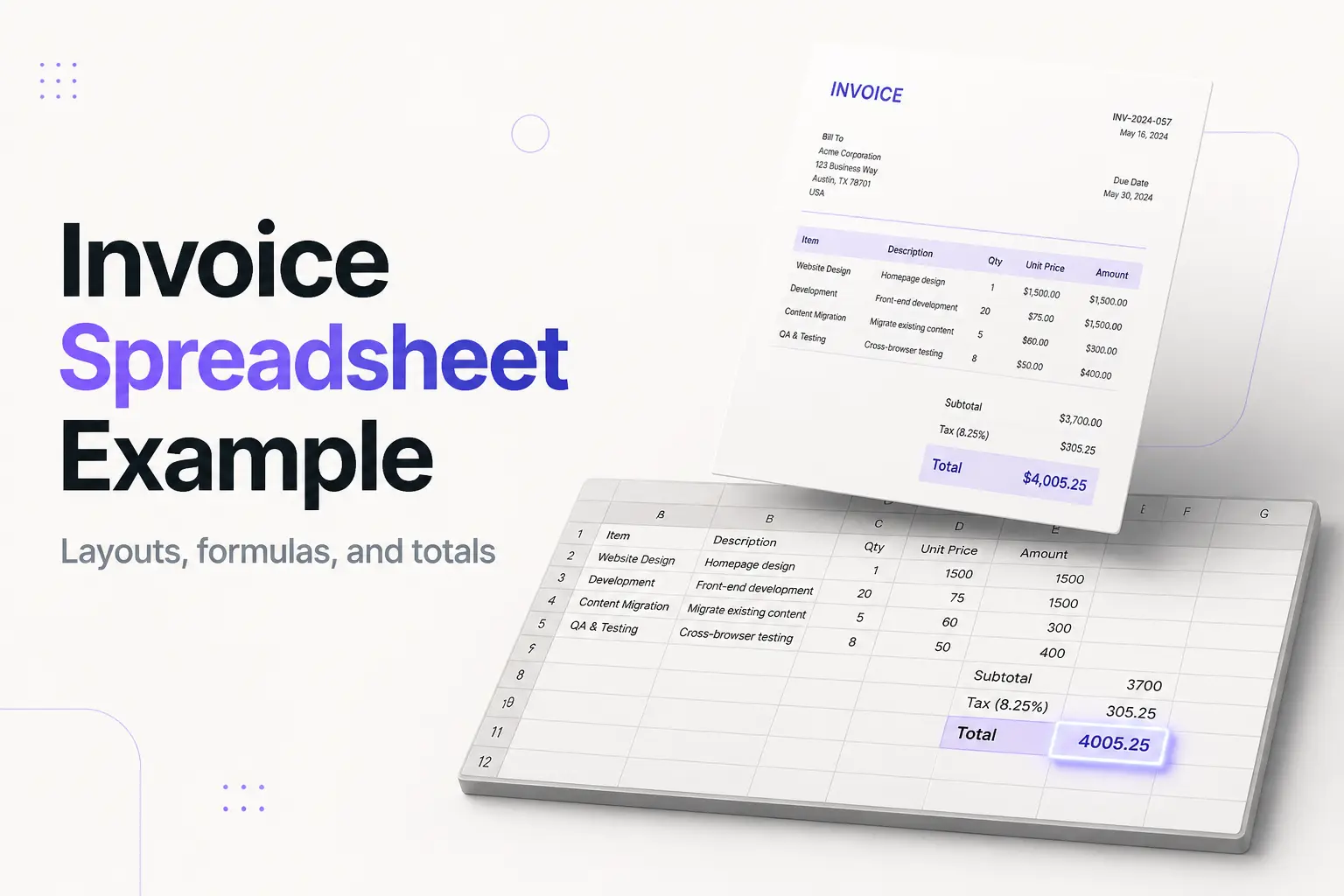
An invoice spreadsheet example, at its simplest, is one sheet split into four stacked blocks: a header (the word INVOICE, your details, and the invoice number/date/due date), a Bill To block for the client, a line-item table with a row per thing you're billing, and a totals block at the bottom. Here is the whole layout in one view:
| Block | What goes in it |
|---|---|
| Header | INVOICE, your business name + contact, Invoice #, Date, Due date |
| Bill To | Client name, company, address, email |
| Line-item table | One row each: Description, Quantity, Unit price, Amount |
| Totals | Subtotal, Tax (if it applies), Grand total |
That's it. An invoice is just an itemized request for payment—who owes what, for which work, by when—and a spreadsheet is a natural home for it because the line items are a small table and the totals are sums. Below is a filled-in example you can copy cell for cell, the two formulas that make it total itself, and a second sample for product billing. If you'd rather not build anything, grab our ready-made Excel invoice template or Google Sheets version—the layout and math are already wired.
The example layout, cell by cell
Picture a sheet where column A is a narrow left margin and the content sits in columns B through F. Reading top to bottom, an invoice spreadsheet example looks like this:
Rows 1–6 — Header. A large, bold INVOICE up top. Beneath it your business name, address, email, and phone. On the right, three labeled cells: Invoice #, Date, and Due date. Leave the top-right corner for a logo if you want one.
Rows 8–11 — Bill To. A small block on the left: the client's name, company, address, and email. This is what tells anyone reading the file who the bill is for.
Rows 12–22 — Line-item table. One header row, then blank rows for items:
| Description | Qty | Unit price | Amount |
|---|---|---|---|
| (item goes here) | =B13*C13 | ||
| (item goes here) | =B14*C14 |
The Amount column is a formula, never typed by hand. Leave eight to twelve blank rows so you have room to grow.
Rows 23–25 — Totals. Three right-aligned rows under the table:
| Subtotal | =SUM(D13:D22) |
| Tax | =D23*G2 |
| Total | =D23+D24 |
Rows 27+ — Payment + notes. How to pay (bank details, or "pay online"), your terms, and a one-line thank you.
Those cell references are examples—yours shift depending on where your table starts. The pattern is what matters: amount = quantity × price, and the subtotal sums the amount column.
What every invoice spreadsheet must include
The US doesn't mandate a single invoice format, but these fields are what get an invoice understood and paid:
- The word "Invoice" and a unique invoice number. Never reuse a number—even one you voided—or your records get tangled.
- Your business name and contact details. A sole proprietor can bill under their own legal name; you don't need an LLC to invoice, and you should not put your Social Security number on it.
- The client's name and address.
- An invoice date and a due date, or terms like Net 30—which means 30 days after the invoice date, not the 30th of the month.
- Line items: a description, quantity, unit price, and amount for each thing you're billing.
- Subtotal, tax if it applies, and a grand total.
- Payment instructions—how and where to pay.
Whether sales tax belongs on the invoice depends on your state and what you're selling; many services aren't taxed, so don't add a tax line just because the template has one. Treat any tax point here as general information, not tax advice.
Worked example 1: a freelance service invoice
You're a freelance designer billing Bright Coffee Co. for a logo and two rounds of edits. Here's the filled-in sheet:
Header
INVOICE
Jordan Lee Design · jordan@example.com · (555) 010-2233
Invoice #  1042
Date       Sept 27, 2026
Due date   Oct 27, 2026   (Net 30)
Bill To: Bright Coffee Co., 118 Market St, Portland, OR
Line items
| Description | Qty | Unit price | Amount |
|---|---|---|---|
| Logo design | 1 | $900.00 | $900.00 |
| Revision round | 2 | $150.00 | $300.00 |
Totals
| Subtotal | $1,200.00 |
| Tax | $0.00 |
| Total | $1,200.00 |
You type only the quantities (1, 2) and unit prices (900, 150). The Amount cells hold =B13*C13 and =B14*C14, so they fill in $900 and $300 on their own. The subtotal is =SUM(D13:D22) → $1,200. Design here is a service not taxed in this client's state, so the tax line stays $0. The total is =D23+D24 → $1,200. Change a quantity and every figure below it re-calculates before you look away.
Worked example 2: a product invoice with quantities
Now you run a small print shop and bill by quantity. This is where a spreadsheet earns its keep—more rows, more math.
Line items
| Description | Qty | Unit price | Amount |
|---|---|---|---|
| Business cards (pack of 250) | 4 | $45.00 | $180.00 |
| Flyers (100) | 3 | $80.00 | $240.00 |
| Vinyl banner | 1 | $120.00 | $120.00 |
Totals
| Subtotal | $540.00 |
| Tax (8.5%) | $45.90 |
| Total | $585.90 |
The Amount column is the same =B*C formula down each row. The subtotal is =SUM() over the three amounts → $540. Printed goods are tangible products, which this state does tax, so the Tax cell multiplies the subtotal by the rate: =D23*G2, where cell G2 holds 0.085. That returns $45.90, and the total =D23+D24 gives $585.90.
Keep the rate in its own cell (G2) rather than typing *0.085 inside the formula—then a rate change is a one-cell edit, not a hunt-and-replace across the sheet.
The two formulas that make it total itself
You only need two to reproduce either example. Say your table runs rows 13–22 with Quantity in column B, Unit price in C, and Amount in D.
Line amount — in the first Amount cell:
=B13*C13
Drag the fill handle down the column so every row calculates itself.
Subtotal — in the subtotal cell, add up the Amount column with the SUM function:
=SUM(D13:D22)
Blank rows count as zero, so this works whether you fill three lines or ten. For tax, multiply the subtotal by a rate in its own cell (=D23*G2); for the grand total, add subtotal plus tax (=D23+D24). That's the entire calculator. Everything else is formatting—set the money cells to Currency so 1200 shows as $1,200.00. For the deeper build (lookups, auto-numbering, drop-downs), see our step-by-step on how to generate an invoice in Excel.
Excel or Google Sheets—does it matter?
Not for the example. The layout is identical, and both use =B13*C13 and =SUM() the same way, so any invoice spreadsheet example works in either. The choice is about how you work:
- Excel — best if you already own Microsoft 365 and want to work offline. Formulas and formatting are richer.
- Google Sheets — best if you want a free, cloud-based sheet you can open on any device and hand off with a share link. No install, autosaves as you go.
Whichever you use, the invoice your client sees should be a PDF, not the live sheet. Our Excel template and Google Sheets template both open with the layout above already built—see the full set on our templates page.
Common mistakes to avoid
- Typing totals by hand. The point of a spreadsheet is the formula. A hand-typed total is a math error waiting to happen and won't update when you tweak a line.
- Sending the .xlsx or live sheet. Export a PDF. In Excel it's Save As → PDF; in Google Sheets it's File → Download → PDF. A raw sheet can be edited by accident and may reflow on the client's screen.
- Assuming you must charge sales tax. Tax depends on your state and what you sell; many services aren't taxed. Delete the tax row if it doesn't apply.
- Reusing invoice numbers. Each invoice needs its own number—even a voided one keeps its number retired—or you create duplicates that confuse everyone, including any auditor.
- Confusing Net terms with a calendar date. Net 30 is 30 days after the invoice date, not the 30th of the month.
- Not keeping a copy. Save every invoice you send. The IRS advises businesses to retain supporting records like sales invoices for their filings.
When a spreadsheet is more fuss than the job
A spreadsheet is great when you like controlling every cell. But laying out the blocks, wiring the formulas, formatting the currency, and exporting a clean PDF every single time is real work—and one wrong cell reference throws off a total.
If your real need is "bill this client and get paid today," skip the sheet. Our free invoice generator fills in the same layout, does the math for you, and downloads a finished PDF in a couple of minutes—no formulas, no print area, no account. Want more filled-in samples first? See our gallery of billing invoice examples.
The short version
An invoice spreadsheet example is four stacked blocks—header, Bill To, line-item table, totals—with two formulas doing the math: =B13*C13 for each line amount and =SUM() for the subtotal, plus subtotal × rate for tax and subtotal + tax for the total. Copy the freelance or product sample above, set the money cells to Currency, export a PDF, and keep a copy. And if building the sheet is more effort than the invoice is worth, a ready-made template or a free generator gets the same result out the door faster.
Frequently asked questions
The FAQs above cover what most people ask about invoice spreadsheets—what one looks like, how to build a simple one, what to include, Excel vs. Google Sheets, how the totals calculate, whether to send a spreadsheet or a PDF, and whether sales tax belongs on it.