Automated invoice templates: how to set up auto-fill invoices that save hours
September 1, 2026 · 8 min read · By Charles Ugo
invoice
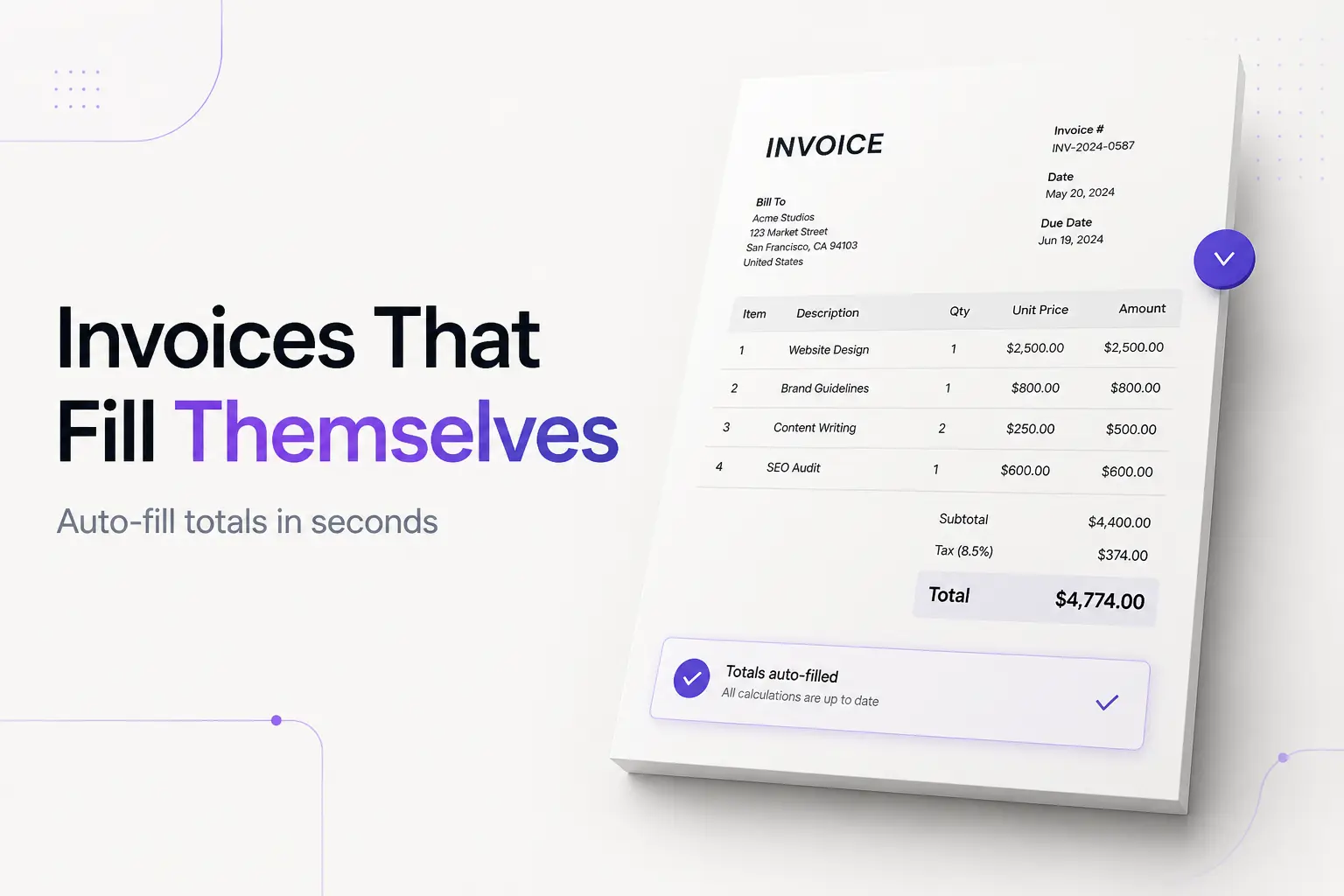
An automated invoice template is an invoice that does part of the work for you. Instead of a blank grid where you retype the same details and reach for a calculator, it fills in the math—line totals, subtotal, tax, and the final amount—the instant you enter a quantity and a rate. The more advanced versions also pull a client's address and a product's price from a saved list, and bump the invoice number up by one for each new bill. You do the thinking; the template does the typing and the arithmetic.
The fastest version of this needs no setup at all: our invoice generator auto-calculates every total as you type and hands you a clean PDF—no formulas to build, no signup, no watermark. If you'd rather own the file and work offline, this guide shows you how to build the automation yourself in a spreadsheet, with the exact formulas, a worked example, and the point where a template stops being enough.
What "automated" actually means (three levels)
"Automated" gets stretched to cover very different things. It helps to see it as three levels, because most of the confusion online comes from people comparing a level 1 template to level 3 software.
Level 1 — auto-calculating. The template does the math. Type 3 and $50, and the amount cell shows $150; the subtotal, tax, and total update themselves. This is what most free "automated" spreadsheet templates mean. It saves you the calculator and kills arithmetic errors.
Level 2 — auto-filling. The template also remembers your clients and products. Pick a client from a dropdown and their address appears; pick a product and its price fills in. You stop retyping details you've entered before. This is still a spreadsheet, but a smarter one.
Level 3 — auto-sending and recurring. Software takes over the schedule. You set it up once, and it creates the invoice, emails it, and tracks payment on its own—every month, without you opening anything. This is recurring invoicing, and a spreadsheet template can't do it without add-ons or scripts.
Levels 1 and 2 are what you build in Excel or Google Sheets. Level 3 is a feature of invoicing apps like QuickBooks, Wave, or Zoho. Knowing which level you actually need saves you from over-building a spreadsheet or overpaying for software.
How the auto-fill works under the hood
Everything at levels 1 and 2 runs on a handful of ordinary spreadsheet features. None of it requires coding.
The math is just multiplication and a sum. Each line's amount is quantity times rate. The subtotal adds every line. Tax is the subtotal times your rate, and the grand total adds tax back on. The SUM function handles the totals; simple * handles the rest.
Dropdowns come from Data Validation. A dropdown of client names or products isn't magic—it's a list you attach to a cell. In Excel it's Data Validation; in Google Sheets it's Data validation. Picking from the list keeps entries consistent and stops typos.
Auto-fill is a lookup. Once you've picked a client from the dropdown, a VLOOKUP or XLOOKUP formula finds that client on a hidden "data" sheet and copies their address, email, and terms into the invoice. The same trick fills a product's price from a price list. That's the whole of "auto-fill": a dropdown to choose, a lookup to fetch.
Invoice numbers are the one thing spreadsheets do badly. A saved file can't safely count itself up—a plain formula would rewrite old invoices every time it recalculates. So in a spreadsheet you keep a running log and copy the next number in by hand. Whatever method you use, follow the one hard rule of invoice numbering: every invoice gets a unique, sequential number, and you never reuse or skip one—even a canceled invoice keeps its number for your records.
Worked example: build an auto-calculating template
Here's a level 1 template from scratch. It works the same in Excel or Google Sheets.
1. Lay out the line-item table. Use four columns: Description, Quantity, Rate, Amount. Say your items start on row 2.
2. Auto-calculate each line. In the Amount cell for row 2, type:
=B2*C2
That multiplies Quantity (B) by Rate (C). Copy it down every line row. Now typing 4 and 75 shows 300 on its own.
3. Add the subtotal. Below the table, in the Amount column, total every line:
=SUM(D2:D11)
4. Add tax. Put your rate in a labeled cell—say 0.08 for 8% in cell C13—then in the tax row:
=C13*[subtotal cell]
Sales tax in the US is set by your state and the type of sale, and plenty of services aren't taxed at all, so leave this at 0 when it doesn't apply. This is general information, not tax advice.
5. Add the grand total.
=[subtotal cell]+[tax cell]
That's a working automated template. Enter descriptions, quantities, and rates, and every total updates itself. Add your name and contact details at the top, the client's details, a unique invoice number, an issue date, and a due date. If you write terms like Net 30, remember that means payment is due 30 days after the invoice date—not by the 30th of the month. When it's ready, save or export it as a PDF so the client can't edit your numbers.
Worked example: add auto-fill for clients and prices
Now the level 2 upgrade—so you stop retyping clients you bill often.
1. Build a data sheet. On a second tab called Clients, make columns: Client name, Address, Email, Terms. Put one client per row.
2. Make a dropdown on the invoice. Click the "Bill to" name cell, open Data Validation, and point it at the client-name column on your Clients tab. You now pick the client from a list instead of typing.
3. Fetch their details with a lookup. In the address cell, use a lookup that reads the name you picked and returns the matching address:
=VLOOKUP([name cell], Clients!A:D, 2, FALSE)
The 2 grabs the second column (Address); change it to 3 for Email, 4 for Terms. Pick a client from the dropdown and their whole block fills in.
4. Do the same for products. Keep a Products tab with names and prices, put a dropdown in each Description cell, and a VLOOKUP in the Rate cell that pulls the price. Now a line item is: choose the product, type the quantity, done—the rate and amount fill themselves.
This is genuinely fast for repeat work. It's also the ceiling of what a spreadsheet does gracefully. Push past it—automatic emailing, payment links, "who hasn't paid" reports—and you're fighting the tool.
Where a template stops being enough
A template automates one invoice at a time. You still open the file, adjust it, export it, attach it to an email, and later check whether the money arrived. For a handful of invoices a month, that's fine, and free.
The line to watch is repetition. If you bill the same client the same amount every month—a retainer, a subscription, rent—you're doing identical work over and over, and that's exactly what recurring invoicing software removes. You set the invoice and the schedule once, and the tool creates, sends, and logs each cycle on its own. Vendors that sell these tools cite big collection-speed gains from automation; treat those figures as marketing, but the time saving on repeat bills is real. Tools like QuickBooks, Wave, and Zoho Invoice all do recurring billing; use one when sending and tracking—not just the math—are what you want gone.
For everything short of that, a template or a free generator is the lighter, cheaper answer. You don't need software, a subscription, or a registered business to invoice—a sole proprietor can bill under their own legal name. Keep a copy of every invoice you send; the IRS expects you to keep supporting business records like the invoices behind your income and expenses.
Common mistakes to avoid
Breaking a formula and not noticing. Insert a row inside your line-item table and a hard-coded =SUM(D2:D11) may not stretch to include it. Check that the range covers every line after you add rows, and glance at the total against a rough mental estimate.
Auto-filling from stale data. If a client moves or a price changes, update the Clients or Products tab—not the invoice. Editing the invoice cell directly breaks the lookup and the next invoice reverts to the old value.
Reusing or skipping invoice numbers. The one thing spreadsheets don't automate is also the easiest to get wrong. Never duplicate a number and never reuse a canceled invoice's number—it corrupts your records and confuses clients.
Sending an editable file. Email the .xlsx and a client can change your figures, and the formulas can render differently on their end. Always export to PDF before sending.
Putting your SSN on the invoice. It's never a required field, and it's an identity-theft risk. If a client needs a tax ID, that's handled on a W-9, not printed on every invoice.
The bottom line
An automated invoice template earns its name by removing the two boring parts of invoicing: the math and the retyping. Build a level 1 template with a multiply-and-sum in ten minutes; add dropdowns and a VLOOKUP for level 2 auto-fill when you bill the same people often. When the repetition itself is the problem—same bill, same client, every month—that's recurring invoicing software's job, not a template's. And when you just want a clean invoice now with the totals done for you, our invoice generator skips the setup entirely.