Invoice scanner: how to extract invoice data automatically with OCR
September 24, 2026 · 12 min read · By Charles Ugo
invoice
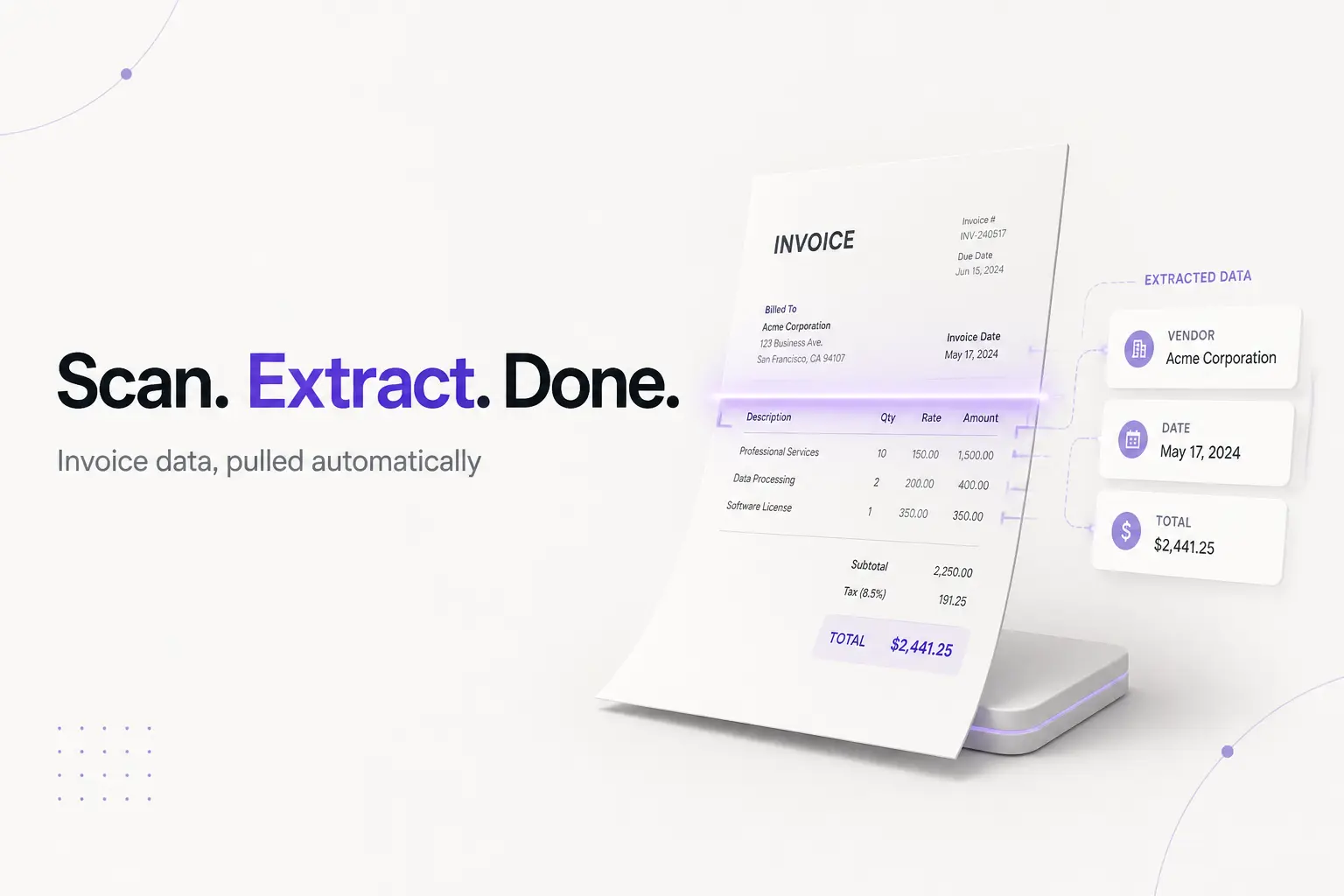
An invoice scanner is software that reads an invoice—a PDF, a scanned page, or a photo from your phone—and pulls out the important data automatically: the vendor, the invoice number, the issue and due dates, the line items, and the totals. Instead of squinting at a document and typing numbers into a spreadsheet, you hand the file to the scanner and it hands back structured data.
The engine behind it is OCR, short for optical character recognition—the technology that converts a picture of text into text a computer can actually work with. On top of OCR, modern tools add a layer of AI that understands where things sit on an invoice, so it knows the number in the bottom-right is the total and the block up top is the vendor.
One thing to get straight before we go further: a scanner reads invoices you receive. If your goal is to create and send an invoice to get paid, that's the opposite job, and you want an invoice generator—fill in the fields, download a clean PDF, no scanning involved. This guide covers the reading side: how OCR extraction works, two worked examples, how accurate it really is, and how to choose a tool.
What "invoice scanner" actually means (three different intents)
The phrase gets searched by people who want three different things. Sort yourself into one before you pick a tool:
- Extract data from an invoice you received. You got a supplier's PDF and you need the vendor, amount, and dates in your bookkeeping without retyping them. This is the true "invoice OCR" job, and it's what most of this guide is about.
- Digitize a paper invoice. You have a stack of printed invoices and want searchable digital copies. A phone scanner app plus OCR turns each page into a PDF with selectable, searchable text.
- Make an invoice. Some people search "invoice scanner" but actually want to produce an invoice to bill a client. Scanning has nothing to do with that—head to a generator. Our free invoice generator builds a branded PDF from a short form, and if you'd rather start from a layout, browse our invoice templates.
Everything below assumes you're in the first or second camp: you have an invoice, and you want the data out of it.
How invoice OCR works, step by step
Every invoice scanner, from a free browser tool to enterprise accounts-payable software, follows the same four stages.
1. Ingestion. The tool takes in the file. That might be an email attachment it monitors automatically, a PDF you upload, or a photo you snap of a paper invoice. If the input is an image or a scan, the tool cleans it up first—straightening the page, boosting contrast, removing shadows—because OCR reads a crisp image far better than a crooked, dim one.
2. Text recognition. The OCR engine scans the image and identifies the characters: letters, digits, and symbols. This is the classic OCR step, and it's where image quality matters most. A clean, printed invoice reads almost perfectly; a faxed, crumpled, or handwritten one is harder.
3. Field mapping. Raw text isn't enough—"$1,240.00" is meaningless until the tool knows it's the total and not a line-item price. This is where AI earns its keep. Instead of you drawing a template for every vendor's layout, the model learns the shape of an invoice and labels each piece: vendor, invoice number, issue date, due date, terms, each line item, subtotal, tax, and total.
4. Validation and export. Good tools sanity-check the result. They flag a total that doesn't equal the sum of line items, warn on a duplicate invoice number, and highlight low-confidence fields for you to confirm. Then they export—to a CSV or spreadsheet, into QuickBooks or Xero, or as structured JSON through an API for developers.
That's the whole pipeline. Notice that step 4 still involves a human for anything the tool isn't sure about. OCR is fast and mostly right; it is not "set it and forget it."
Worked example 1: extracting data from a supplier invoice
Say you're a small-business owner who just got a PDF invoice from a supplier and needs it in your books. Here's what the scanner does with it.
You drop this invoice into the tool:
NorthField Supply Co.
Invoice #: NFS-4471
Issue date: September 24, 2026
Due date: October 24, 2026 (Net 30)

Recycled kraft mailers, 500 units @ $0.42     $210.00
Bubble wrap roll, 3 @ $18.00                    $54.00
Packing tape, 12 @ $2.50                        $30.00
Subtotal                                       $294.00
Sales tax (7%)                                  $20.58
Total due                                      $314.58
The scanner returns structured fields:
| Field | Extracted value |
|---|---|
| Vendor | NorthField Supply Co. |
| Invoice number | NFS-4471 |
| Issue date | 2026-09-24 |
| Due date | 2026-10-24 |
| Terms | Net 30 |
| Subtotal | $294.00 |
| Tax | $20.58 |
| Total | $314.58 |
Plus each line item as its own row. Now check the two things OCR most often fumbles: the total and the dates. Does $210 + $54 + $30 = $294? Yes. Is the tax line 7% of $294? $294 × 0.07 = $20.58—correct. Is the due date really 30 days out? Net 30 means payment is due 30 days after the invoice date, so September 24 plus 30 days lands on October 24. It checks out. Export to your spreadsheet, and you've recorded the bill in under a minute instead of retyping eleven numbers.
Worked example 2: scanning a paper invoice with your phone
Now the messier case: a printed invoice a contractor handed you, and you want it digitized and its total captured.
- Photograph it well. Lay the page flat on a dark surface, shoot in even light, get all four corners in frame, and avoid glare. A good photo is 80% of a good extraction.
- Let the app clean the image. The scanner app straightens the page, crops to the edges, and boosts contrast so the text is sharp.
- Run OCR. The app reads the characters and maps the fields, same as before.
- Fix the weak spots. Handwriting, a smudged total, or an unusual layout is where errors hide. Say the printed total is
$1,480.00but OCR reads$1,460.00because the 8 was faint. This is exactly why you verify the amount against the page before you record it. - Save and file. Store the searchable PDF and the extracted data together. The IRS expects self-employed people to keep supporting documents like invoices, so a digital copy you can search beats a shoebox of paper.
The lesson from both examples: OCR removes the typing, not the judgment. You still read the total.
How accurate is invoice OCR?
Accurate enough to save real time, not accurate enough to trust blindly. Vendors commonly advertise 95–99% field accuracy on clean, printed invoices, and independent comparisons put well-tuned OCR near that range—comfortably ahead of manual data entry, which studies of accounts-payable teams have pegged closer to 90%. Treat those figures as vendor and analyst claims, not a guarantee for your documents.
Accuracy is not one number, though. It swings with:
- Input quality. A native PDF from accounting software reads near-perfectly. A phone photo of a crumpled thermal receipt does not.
- Layout familiarity. Standard invoice layouts extract well; a vendor with a bizarre custom template can trip the field mapping.
- Handwriting. Printed text is far more reliable than handwritten notes or totals.
- Language and characters. Most tools are tuned for Latin-script, English-language invoices and slip on others.
Because one wrong digit in a total or a bank-account number is expensive, the professional habit is to treat every extraction as a draft. Verify the amount, the vendor, and the dates. Good tools help by flagging low-confidence fields so you know exactly where to look.
Choosing an invoice scanner
Match the tool to your volume and your goal.
For a handful of invoices a month, a free browser extractor or a phone scanner app is plenty. You drop in a PDF or photo, copy the fields into your spreadsheet, done. Just remember that free stops being free once you're fixing every result by hand.
For steady bookkeeping, look for a tool that: captures full line items (not just the total), exports straight into your accounting software, validates totals and catches duplicates, and needs no per-vendor template. Tools built for this include DocuClipper, AutoEntry, and Rillion; developers who want to pull invoice data into their own app often reach for an OCR API like Mindee or a parser such as Parseur. Compare a couple against your real invoices before committing—accuracy on your documents is the only benchmark that matters.
If you actually wanted to create invoices, none of the above applies. Scanning reads; it doesn't bill. Use our invoice generator to make a professional PDF and send it, and see how to write an invoice for beginners if you're starting from scratch. A sole proprietor can invoice under their own legal name—you don't need an LLC to bill a client.
Common mistakes to avoid
- Trusting the total without checking. The number-one error. OCR misreads a faint digit and you record the wrong amount. Always eyeball the total against the page.
- Only capturing the total. If you skip the line items, you can't itemize your bookkeeping later. Pick a tool that extracts every row.
- Feeding it a bad photo. Glare, shadow, and a crooked angle wreck accuracy. Two seconds of care shooting the image saves minutes of cleanup.
- Confusing scanning with creating. You cannot "scan" a new invoice into existence. To bill someone you build one; to record one you scan it.
- Reusing an invoice number when you re-create a bill. If you rebuild an invoice from a scan, keep your own numbering clean—never reuse an invoice number, even a voided one, or your records won't reconcile.
- Assuming the tax field is always right. Whether a line should carry sales tax depends on your state and what's being sold—many services aren't taxed. Sales tax is a US concept; there's no VAT in the US. Confirm, don't assume, and treat this as general information rather than tax advice.
Frequently Asked Questions
What is an invoice scanner? An invoice scanner is software that reads an invoice—a PDF, a scanned page, or a phone photo—and pulls out the key data automatically: the vendor, the invoice number, the dates, the line items, and the totals. It uses OCR (optical character recognition) to turn the picture of text into machine-readable text, then maps each piece to the right field so you don't retype it. Most tools export the result to a spreadsheet, QuickBooks, or an API.
How does invoice OCR work? In four steps. First the tool takes in the file (email attachment, upload, or photo) and makes a clean digital image. Second, the OCR engine recognizes the characters on the page. Third, AI maps those characters to fields—this number is the total, this string is the vendor, this block is a line item. Fourth, the tool validates the result (flagging odd totals or duplicates) and exports it. Modern tools do this without you building a template per vendor.
Is there a free invoice scanner? Yes. Several browser tools let you drop in a PDF or photo and extract the fields at no cost, and phone apps can scan a paper invoice. Free tools are fine at low volume. The catch is that "free" ends where manual cleanup begins—if you spend ten minutes fixing every extraction, a paid tool that gets it right is cheaper. Note that scanning reads an invoice you received; to create and send one, use an invoice generator instead.
How accurate is invoice OCR? Vendors commonly claim 95–99% field accuracy on clean, printed invoices, and independent write-ups put well-tuned OCR near that range—clearly better than manual keying. Accuracy drops on crumpled paper, bad photos, handwriting, and unusual layouts. Because a single wrong digit in a total or account number is expensive, treat every extraction as a draft: review the amount, the vendor, and the dates before you act on them.
Can I scan a paper invoice with my phone? Yes. Most invoice scanner apps let you photograph a paper invoice; the app straightens and sharpens the image, runs OCR, and returns the fields. For a good read, shoot in even light, get all four corners in frame, and avoid glare and shadows. A flat, well-lit photo extracts far more reliably than a dim, angled one.
What data can an invoice scanner extract? Typically the header fields—vendor name and address, invoice number, issue date, due date, and payment terms—plus the money: subtotal, tax, and total. Better tools also capture every line item (description, quantity, rate, amount), which is what you need for real bookkeeping. Some also read a PO number so the invoice can be matched against a purchase order.
What's the difference between an invoice scanner and an invoice generator? They point in opposite directions. A scanner reads an existing invoice and extracts its data—useful for invoices you receive and need to record. A generator creates a new invoice from fields you fill in and gives you a clean PDF to send—useful for billing your own clients. If your goal is to get paid, you want a generator, not a scanner.
An invoice scanner earns its place when you're drowning in invoices to record—it turns typing into checking, and checking is faster. Just keep the two jobs straight: scanning pulls data out of invoices you receive, and it never replaces reading the total yourself. When your job is the other direction—putting a clean invoice into a client's inbox—skip the scanner and let our invoice generator build the PDF for you.