How to Undo a Bank Reconciliation in QuickBooks Online (Step-by-Step)
September 2, 2026 · 10 min read · By Charles Ugo
invoice
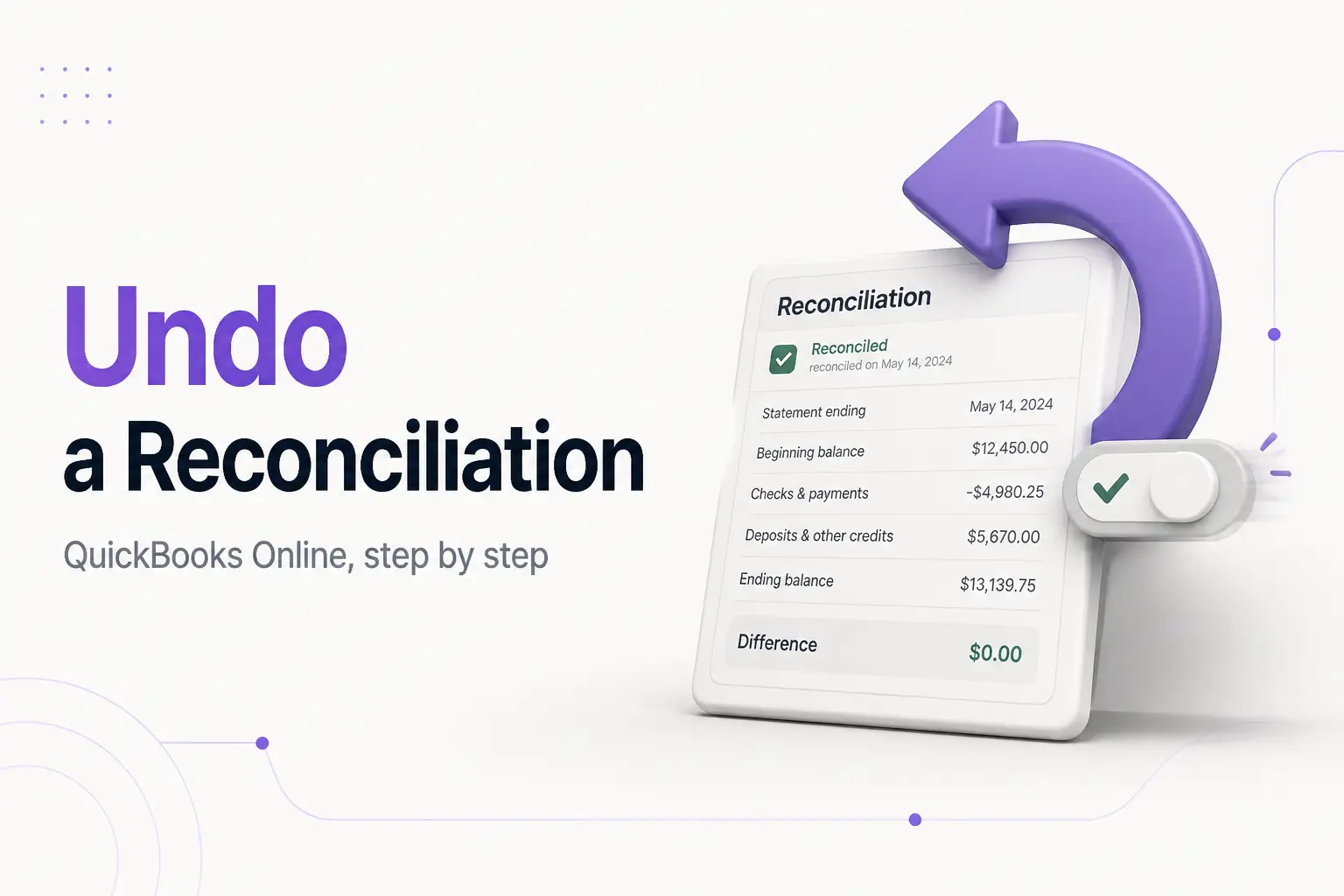
There are two ways to undo a bank reconciliation in QuickBooks Online, and which one you use depends entirely on your access. If you (or your bookkeeper) have QuickBooks Online Accountant, you can undo an entire month in a few clicks. If you're on a regular QuickBooks Online plan, there's no "undo the whole month" button—instead you un-reconcile the transactions one at a time in the account register. Both get you to the same place; this guide walks through each, with two worked examples and the mistakes that quietly break your books.
First, the reassuring part: undoing a reconciliation does not delete anything. A bank reconciliation is the process of matching your books to your bank statement and marking each matched transaction as reconciled. To "undo" it is simply to remove that reconciled stamp—the transactions, amounts, and dates all stay put. You're changing a status, not erasing history.
When you actually need to undo one
Don't undo a reconciliation just because a number looks off. Most of the time the fix is smaller. Undo (or un-reconcile) when:
- You reconciled to the wrong statement or the wrong ending balance, so the whole month is built on a bad number.
- A transaction was reconciled by mistake—wrong account, wrong amount, or a duplicate that should never have cleared.
- You need to edit or delete a transaction that's locked as reconciled. QuickBooks warns you before you change anything marked R, and un-reconciling that one line clears the warning.
- A prior reconciliation was forced to balance with a bogus adjustment, and you want to redo it properly.
If you just want to understand the process end to end first, our plain-English guide to bank reconciliation covers the formula and the step-by-step match. Come back here when you need to unwind one.
The two methods at a glance
| Accountant undo | Manual un-reconcile | |
|---|---|---|
| Who can do it | QuickBooks Online Accountant users (or the "in-house accountant" role) | Any user with edit access |
| What it undoes | An entire month at once—plus every reconciliation after it | One transaction at a time |
| Best for | Redoing a whole bad month | Fixing one or two specific transactions |
| Where | Reconcile → History by account | Chart of accounts → account register |
Method 1: Undo a whole month (Accountant access)
This is the clean way, but it only appears if you're working in QuickBooks Online Accountant—the version bookkeepers and accountants use to manage client files. A standard business subscription won't show the Undo option.
Before you start: download any reports or attachments tied to that reconciliation. Undoing it permanently deletes them, and QuickBooks won't ask twice.
- Open the client's company in QuickBooks Online (or your own file, if you have the in-house accountant role).
- Go to Accounting → Reconcile (in some layouts, All apps → Accounting → Reconcile).
- Select History by account.
- Choose the account and the date range that contains the reconciliation you want to unwind.
- Find the month in the list. In the Action column, open the dropdown and select Undo.
- Confirm. QuickBooks flips every transaction in that month from reconciled (R) back to cleared (C).
One thing to know before you click: undoing a month also undoes every reconciliation after it. That's not a bug—it's the ripple we cover below. So if you're undoing March, know that April, May, and June come loose too.
Method 2: Un-reconcile transactions by hand (standard QuickBooks Online)
No Accountant access? You can still fix a reconciliation—you just work at the transaction level. This is Intuit's documented method for regular QuickBooks Online, and it's perfect when only a handful of lines are wrong.
- Go to Transactions → Chart of accounts (older menus call it Bookkeeping → Chart of accounts).
- Find the bank account you reconciled and click View register.
- Locate the transaction you need to unwind. Click it to expand the row.
- Look at the small tick box in the top-right of the row—the reconcile status column. A reconciled transaction shows R. A cleared one shows C. A blank box is unreconciled.
- Click the box to cycle its status. Keep clicking until it goes from R to blank (or to C, if you only want to drop it out of the reconciled state).
- Click Save, and confirm if QuickBooks prompts you.
Repeat for each transaction you need to release. That's the trade-off: it's precise, but for a whole month of entries it's slow—which is exactly why the Accountant one-click undo exists.
Worked example 1: one transaction reconciled by mistake
Maya runs a small design studio. While reconciling June, she accidentally ticked a $1,200 client deposit that hadn't actually cleared the bank yet—it was still a deposit in transit. Now her June reconciliation "balances," but only because that phantom $1,200 is in there. Her books say the bank has $1,200 more than it really does.
She doesn't need to blow up all of June. She opens Chart of accounts → View register on her checking account, finds the $1,200 deposit, and clicks its status box until the R disappears. Save. That single line is now unreconciled. When July's real bank statement shows the deposit clearing, she'll reconcile it in the right month. Total time: about a minute, and the rest of June stays intact.
Worked example 2: a wrong ending balance across three months
Devon discovers that his April reconciliation was done against the wrong statement—he typed an ending balance of $8,450 when the real figure was $8,540. He caught it in July, which means May and June were both reconciled starting from a wrong number. Every month since April is quietly $90 off.
Because the error is baked into the ending balance, editing one transaction won't fix it—he needs to redo April, and everything after it, cleanly. His bookkeeper has QuickBooks Online Accountant, so the order matters:
- Undo in reverse. Undo June first, then May, then April. (If Devon undid April first, QuickBooks would throw May and June out of balance anyway—so he might as well control the order.)
- Re-reconcile forward. Start April again with the correct $8,540 ending balance. Its new ending balance flows into May's beginning balance, so May now starts from a true number. Reconcile May, then June.
- Check the beginning balance each time. If a month's beginning balance matches the prior month's ending balance, the chain is intact.
Done in order, the $90 error unwinds cleanly. Done out of order, Devon spends an afternoon chasing "out of balance" warnings that he created himself.
What happens after you undo
- Nothing gets deleted. Statuses change from R back to C or blank. Amounts, dates, payees, and categories are untouched.
- Later months come loose. Each month's ending balance is the next month's beginning balance, so undoing an earlier period unbalances every period after it. Plan to re-reconcile forward.
- Bank-feed matches survive. A transaction matched from your bank feed stays matched—it just isn't reconciled anymore. You don't have to re-import it.
- Reports and filings don't auto-adjust. If the period is already closed or reported, changing what's reconciled can shift your balance sheet and cash figures. QuickBooks won't amend a filing for you.
Common mistakes to avoid
Undoing months in the wrong order. Always go newest to oldest. Undo June, then May, then April—never the reverse. Undoing an old month first cascades "out of balance" flags through every month after it.
Forgetting to save the reports first. The Accountant full-undo permanently deletes attachments and reconciliation reports for that month. Download them before you click Undo, or they're gone.
Un-reconciling in a closed period. If you've set a closing date or already filed based on those numbers, don't quietly change them. Treat tax and reporting impacts as general information, not advice, and confirm with your accountant before you touch a closed month.
Deleting the transaction instead of un-reconciling it. If your goal is to edit a reconciled entry, un-reconcile it first, then edit. Deleting a reconciled transaction outright can leave your reconciliation short and force a fake adjustment later.
Redoing the reconciliation with the same wrong number. If you undid a month because the ending balance was wrong, pull the actual bank statement and type the real figure when you redo it. Otherwise you'll reconcile straight back into the same error.
You may not need QuickBooks at all
Reconciliation is a bookkeeping job—worth it once you're running full accounting in QuickBooks. But plenty of freelancers and small businesses land on QuickBooks only because they needed to send an invoice and get paid, then inherit the whole reconciliation workflow along with it.
If billing a client is really all you need, you don't need a subscription or a monthly close. Our free invoice generator builds a clean, professional invoice in a couple of minutes—no account, no reconciliation to undo later. Prefer a head start? Grab a ready-made QuickBooks-style invoice template and fill it in. Keep QuickBooks for the accounting; let a simple tool handle the invoice.
Frequently Asked Questions
Can I undo a whole month's bank reconciliation in QuickBooks Online? Only with QuickBooks Online Accountant. If you or your bookkeeper has Accountant access, open the Reconcile page, go to History by account, find the month, and choose Undo from the Action column. A standard QuickBooks Online plan has no full-undo button—there you un-reconcile the transactions one at a time in the register.
How do I unreconcile a single transaction in QuickBooks Online? Go to Transactions → Chart of accounts, click View register on the bank account, and open the transaction. Click the reconcile-status box (it shows R for reconciled) until it's blank or C, then Save. That one line comes off the reconciliation without disturbing the rest of the month.
Does undoing a reconciliation delete my transactions? No. It only changes each transaction's status from reconciled back to cleared or blank. The transactions, amounts, dates, and categories all stay exactly as they were.
Why did undoing one month throw all my later months out of balance? Because each month's ending balance becomes the next month's beginning balance. Undo an earlier month and its ending balance changes, so every reconciliation after it no longer starts from a matching number. Undo months in reverse order and re-reconcile forward to fix it.
Do I need Accountant access to undo a reconciliation? Only for the one-click full-month undo. Without it, you can still un-reconcile individual transactions in the register, which any user with edit access can do. If you have a bookkeeper on QuickBooks Online Accountant, ask them to run the full undo for a whole month.
Will undoing a reconciliation change my reports or tax filings? It can. Changing what's reconciled—and any edits you make afterward—can shift your balance sheet and cash figures for that period. QuickBooks doesn't amend anything you've already filed, so treat closed or reported periods as general information and check with your accountant first.
How do I undo a reconciliation in QuickBooks Desktop instead? In Desktop, go to Banking → Reconcile and choose Undo Last Reconciliation—it's built in for the most recent reconciliation. QuickBooks Online is different: the full undo lives only in the Accountant version, and everyone else works transaction by transaction.
The short version
To undo a bank reconciliation in QuickBooks Online, pick the method that matches your access. With QuickBooks Online Accountant, go to Reconcile → History by account and hit Undo to unwind a whole month—remembering it releases every month after it too. On a standard plan, open the account register and click each transaction's status box until the R clears. Either way you're changing a status, not deleting data. Undo newest-to-oldest, save your reports first, and redo the reconciliation with the correct ending balance—then your books tell the truth again.