CRM Software: What It Is, How It Works, and How to Choose the Right One
August 8, 2026 · 11 min read · By Charles Ugo
invoice
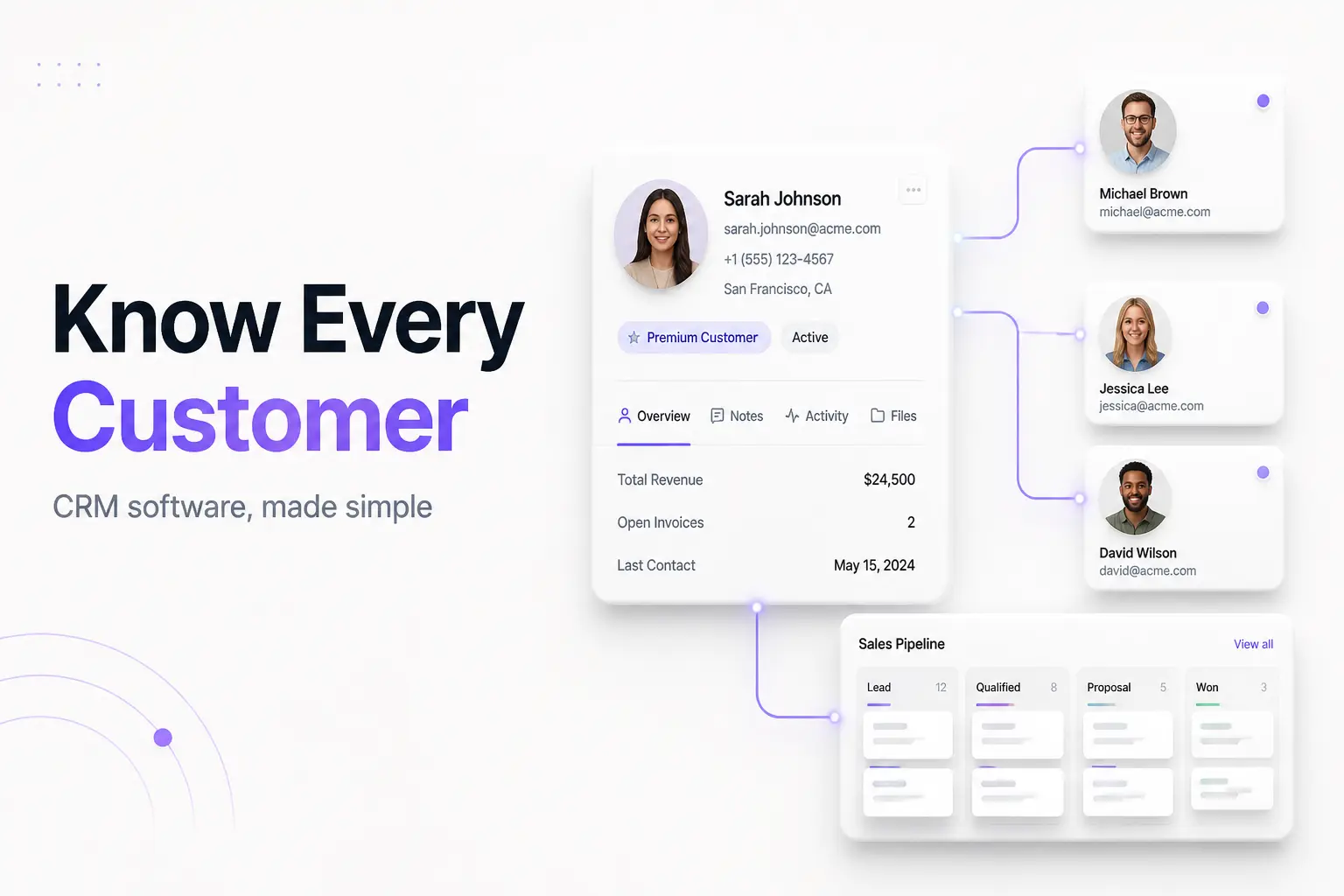
Picture your customer list as an address book that also remembers every conversation. Who you spoke to last Tuesday, what they asked for, the quote you sent, whether they paid, and what to do next. That is CRM software in one sentence.
CRM stands for customer relationship management. The software is a single place to store customer details and the whole history of your dealings with them, so nothing lives only in one person's inbox or head. IBM defines a CRM as the technology a company uses to manage all its interactions with customers across sales, marketing, and service.
This guide keeps it practical. You will learn what a CRM actually does, the main types, two worked examples, what it costs, and how to choose one without paying for features you will never touch. If you mostly need to bill clients rather than manage a sales pipeline, skip ahead—our free invoice generator does that job on its own.
What CRM software actually does
Strip away the marketing and a CRM does five core jobs:
- Stores contacts in one place. Every lead, customer, and company sits in one searchable database instead of scattered across spreadsheets, phones, and email.
- Tracks the full history. Calls, emails, meetings, quotes, and support tickets attach to the right contact, so anyone on your team can see the whole story.
- Manages the sales pipeline. Deals move through stages—new lead, contacted, proposal sent, won or lost—so you always know what is close and what is stuck.
- Automates busywork. Reminders, follow-up emails, and task assignments fire on their own instead of relying on someone to remember.
- Reports on what is working. Dashboards show your win rate, sales forecast, and which sources bring the best customers.
The payoff is simple: your team stops losing track of people. A widely cited Nucleus Research study found CRM returns an average of $8.71 for every dollar spent—though returns vary a lot by how well a team actually adopts the tool. Treat that as a signal, not a promise.
The three main types of CRM software
Vendors label their products in a hundred ways, but almost every CRM fits one or more of three buckets.
1. Operational CRM. This is the day-to-day workhorse. It automates sales, marketing, and service tasks—capturing leads from a web form, sending a welcome email, assigning a support ticket. If you want a tool that runs the routine work for you, this is the core.
2. Analytical CRM. This one mines your customer data for patterns. It answers questions like "which customers are about to leave?" and "what will we sell next quarter?" It turns the pile of stored data into forecasts and segments.
3. Collaborative CRM. This type focuses on sharing. It makes sure the same customer record is visible to sales, marketing, and support at once, so a customer never has to repeat themselves when they get handed between teams.
Most modern platforms blend all three. Some vendors, including Salesforce, split these into four types by breaking out campaign management, but the three-way model is the one you will meet most often. For a small business, do not overthink the labels—pick a tool that does the jobs you need today.
How CRM software works, step by step
Here is the typical flow, from a stranger to a paying customer, inside a CRM:
- A lead comes in. Someone fills out your contact form, replies to an ad, or hands you a business card. The CRM creates a contact record automatically or with one click.
- The record fills up. Every email, call, and note attaches to that contact. No more hunting through your sent folder.
- The deal moves through stages. You drag the deal from "new" to "proposal sent" to "won." The pipeline view shows every open deal at a glance.
- Automation nudges you. If a lead goes quiet for a week, the CRM reminds you to follow up—or sends the follow-up itself.
- You close and bill. When the deal is won, you send the invoice. Some CRMs do basic invoicing; many teams hand off to a dedicated tool here (more on that below).
- Reports learn from it. Every closed deal feeds the dashboard, so your forecast and win-rate numbers stay current.
The whole point is that no step depends on one person's memory. The data lives in the system, not in someone's head.
Worked example 1: a small design studio
Maria runs a four-person branding studio. Before a CRM, leads came through email, Instagram, and referrals, and two got dropped last quarter because nobody followed up.
She sets up a CRM with three pipeline stages: Inquiry → Proposal → Booked. Now:
- A website inquiry auto-creates a contact and a deal in "Inquiry."
- The CRM reminds Maria to reply within a day and to nudge again after five days if the client goes quiet.
- When a client says yes, the deal moves to "Booked," and Maria sends the deposit invoice.
Two months in, no lead has been dropped, and Maria can tell at a glance that referrals close twice as often as Instagram leads—so she asks happy clients for referrals more often. The CRM did not sell anything; it just stopped things from falling through the cracks and showed her where the good work comes from.
Worked example 2: a solo consultant who does not need one yet
James is a freelance marketing consultant with six clients. He tracks everything in a single spreadsheet and his calendar, and he has never missed a follow-up.
He tries a CRM anyway because a blog told him to. Two weeks later he cancels. His client list is small enough to hold in his head, and the CRM added data entry without saving him time. What James actually needed was a faster way to send clean invoices—so he switched to our invoice generator and kept the spreadsheet.
The lesson: a CRM earns its keep when volume and handoffs create chaos. Below that threshold, it is overhead. Be honest about which side of the line you are on.
CRM vs. ERP vs. invoicing tools
People mix these up constantly. Here is the clean split.
| Tool | What it manages | Front or back office |
|---|---|---|
| CRM | Customers: leads, deals, service | Front office |
| ERP | Finance, inventory, supply chain, HR | Back office |
| Invoicing tool | Creating and sending bills, receipts | A single task |
CRM runs the customer-facing side—sales, marketing, support. ERP runs the internal machinery. As IBM explains the CRM-versus-ERP difference, many ERP suites bundle some CRM features, but a CRM does not manage your core accounting or operations.
And a CRM is not an invoicing tool. Some CRMs can generate a basic invoice, but billing is a side feature, not the point. If your real need is "make a professional invoice and send it," you do not need any of this machinery. Use our free invoice generator or grab a ready-made layout from our invoice templates. New to invoicing? Start with our beginner's guide to what an invoice is and how to write an invoice.
How to choose the right CRM software
Work through these in order. The first one matters most.
1. Name the problem first. Write down the exact thing going wrong—"we drop leads," "we cannot forecast," "support and sales duplicate work." Buy for that, not for a feature list.
2. Check the free and starter tiers. Several strong CRMs are free for small teams. Start there before paying. You can always upgrade once you outgrow it.
3. Test the daily flow, not the demo. Sign up for a trial and run your real work through it for a week. The polished sales demo hides how clunky routine data entry can feel.
4. Confirm the integrations you need. Make sure it connects to your email, calendar, and any tools you already live in. A CRM that does not sync with your inbox will not get used.
5. Weigh ease of adoption. The best CRM is the one your team actually updates. A powerful tool nobody keeps current is worse than a simple one everybody uses.
6. Look one tier up. Check the price and features of the next plan so you know the cost of growing into it. Avoid tools that force a giant leap to get one feature.
What CRM software costs
Pricing is almost always per user, per month. Rough bands for small businesses:
- Free tiers: Several major CRMs offer a genuinely usable free plan for small teams—a fine place to start.
- Low-cost plans: about $10–$30 per user/month—good for basic contact and pipeline management.
- Mid-range plans: about $30–$100 per user/month—adds workflow automation, custom pipelines, and detailed reporting.
Two hidden costs to budget for: the time to set it up and clean your data, and add-ons (extra automation, more storage, premium support) that can quietly double the sticker price. Always check the next tier's cost before you commit, since prices climb as you add users and features.
Common mistakes to avoid
- Buying before you feel the pain. If a spreadsheet still works, a CRM is premature. Wait for the chaos.
- Overbuying features. A ten-person shop rarely needs an enterprise suite. Extra features you never touch are just clutter and cost.
- Skipping the trial. The demo always looks great. Your own messy data in a week-long trial tells the truth.
- Letting data rot. A CRM half-updated is worse than none, because people trust it and it is wrong. Adoption beats features.
- Confusing it with billing. Do not pick a CRM hoping it will replace a proper invoicing workflow. It usually will not.
- Ignoring the exit. Check you can export your contacts. Your data should never be trapped.
Do you actually need one?
If you are losing track of leads, missing follow-ups, or juggling customer notes across three inboxes, a CRM will likely pay for itself quickly. Start with a free tier, buy for the problem you named, and make adoption the priority. The U.S. Small Business Administration's finance guide is a useful companion for thinking about business tools and budgets.
If your customer list is small and orderly, hold off. What most solo operators actually need is not a CRM but a fast, professional way to get paid. That is where we come in: create and send a clean invoice in minutes with our free invoice generator, and when a bill runs late, our guide on how to ask for payment will help you chase it politely.
This post is for general informational purposes only and is not business, financial, or legal advice.
Frequently Asked Questions
What is CRM software in simple terms?
CRM software is a shared address book with a memory. It stores every customer's contact details and the full history of your dealings—emails, calls, quotes, deals, and support tickets—in one place so your whole team sees the same picture and nothing slips through the cracks.
What are the three types of CRM?
Operational CRM automates day-to-day sales, marketing, and service tasks. Analytical CRM studies your customer data to find patterns and forecast revenue. Collaborative CRM shares that data across teams so sales, marketing, and support stay in sync. Most modern platforms blend all three.
What is the difference between CRM and ERP?
CRM handles the front office—sales, marketing, and customer service. ERP handles the back office—accounting, inventory, supply chain, and HR. Many ERP suites include some CRM features, but a CRM does not run your core finance and operations.
Do small businesses really need a CRM?
Not always on day one. If you can track every lead and follow-up in your head or a simple spreadsheet, hold off. Once deals start slipping, follow-ups get missed, or customer notes live in three different inboxes, a CRM pays for itself fast.
How much does CRM software cost?
Several good tools have free tiers. Paid plans for small businesses usually run about $10 to $30 per user per month at the low end and $30 to $100 for mid-range plans with automation and reporting. Budget for setup time and add-ons too.
Does a CRM include invoicing?
Some do, at a basic level. But CRMs are built to win and keep customers, not to be full billing tools. If you mainly need to send a clean, professional invoice, a dedicated invoice generator is faster and free—no CRM required.